
Ever had issues with your Dropbox account? It's easy to use but has some hidden faults. Find out more in this article.

Table of contents
1. BoxCryptor
2. Viivo
3. Cloudfogger
4. OwnCloud
5. SpiderOak
6. Wuala
7. Tresorit
8. Mega
9. sync
10. TeamDrive
People tend to have a love-hate relationship with Dropbox. It is so convenient and it simply works. No way to argue that fact. Sending a quick link to somebody of your new photo collections or syncing recipe ideas over to multiple computers has never been easier.
The simplicity of using Dropbox has made it to one of the most known cloud storage and syncing services on the web, with an almost insultingly high valuation just short of 10 billion USD. Setting it up is really simple: just create an account, install Dropbox on a machine and violá you end up with a working system that even your grampa can use (hey son, look at those incredible bird photo collection of mine, impressive right?)
Also Dropbox integrates nicely with a variety of (web) apps. If you're already using Facebook, you can easily upload photos to your account or vice-versa. If you're using a password management program, you can sync your vault over Dropbox. It integrates with Evernote, Omnifocus and other task management programs. Dropbox even imports photos automatically from an SD card. There are more cool things you can do with cloud storage – making use of Dropbox's superb third-party integration is just one of them.
Did we mention that Dropbox is free for 2GB? That's what made Dropbox big. And many people won't need more than those 2GB for the occasional file sync or share here and there.
That's the love. Now comes the hate.
Show Me The Flaws
Of course, not all is rosy in the land of Dropbox. After all, this post is titled "Secure Dropbox Alternatives". So, there must be something awfully wrong and too-good-to-be-true about using Dropbox for personal or even business files, right?
So what's missing? While Dropbox has a high level of user friendliness and convenience, those comes at a price. Data integrity and security. Dropbox does not take care of encrypting files properly. To clarify, we need to look at how encryption for cloud storage services should work for best privacy (simplified):
Step 1
Step 2
Step 3
Dropbox fulfills the last two steps but lacks the crucial first part of local encryption of files. That's why Edward Snowden discourages people from using Dropbox and
Dropbox's popularity is a double edged sword. On the one hand, it integrates smoothly with other programs and apps, on the other, it is prone to attacks from hackers who try to expose files and passwords and has been highly criticized in the past for not protecting their users' information.
Now that we know a little bit about the state of security, let's dive into some of the top secure dropbox alternatives of 2014. We will only look at services which explicity provide local encryption. So, I will not include Dropbox like services (i.e. Bitcasa, copy, Google Drive, OneDrive etc.) that essentially have the same security vulnerability.
Using Dropbox with Cloud Lockers
People don't like to switch their "working" system at all, or they're afraid of using a new service out of their comfort zone. Luckily, there are options where you can stay with Dropbox if you're willing to go the extra mile and encrypt your most important files with specific cloud file lockers for Dropbox.
What these encryption services will do is add the missing local encryption that Dropbox is lacking. That way, you can safely store sensitive information on Dropbox's servers without the NSA being able to spy on you.
In this article, we're looking at three different solutions: Boxcryptor vs Viivo vs CloudFogger. We're not going to look at TrueCrypt, because they ceased development a while ago and it is not guaranteed to be safe anymore.
These three solutions are the most requested by our readers and we get a lot of email regarding their implementation with Dropbox. So, let's have closer look– starting with BoxCryptor:
1. BoxCryptor
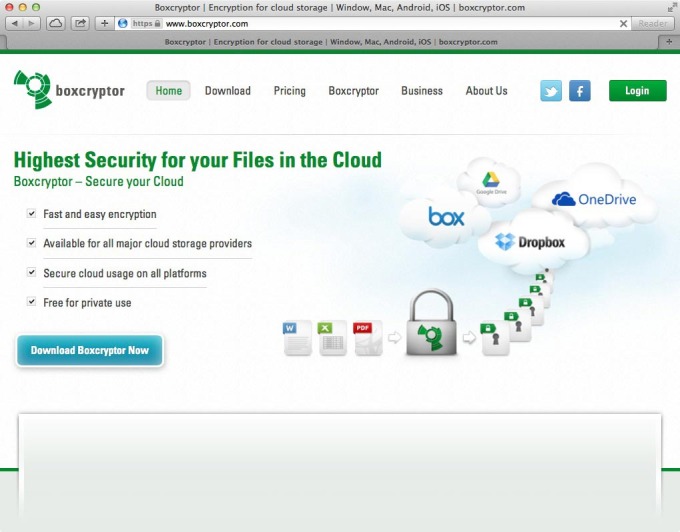
According to BoxCryptor's website, they provide fast and easy encryption for files and folders. The good part is that it's not only available for Dropbox, but also for all the other major cloud storage services like Box, OneDrive (formerly SkyDrive), Google Drive, Box and SugarSync and integrates nicely with services that use WebDAV. It has also been widely featured on Forbes, Lifehacker and Gigaom.
BoxCryptor for private use is absolutely free. Yet it comes with a couple of restrictions. We tested the Unlimited Personal license because of the extra added layer of security which encrypts file names. Also, the Unlimited license can be used on unlimited devices.
The personal license comes at $48 per year, so it's quite affordable for that peace-of-mind sensation that you're probably looking for. Commercial licenses cost $96 per year.
BoxCryptor uses AES-256 and RSA encryption algorithms which are considered to provide a high level of security and are therefore used by governments and organizations alike.
Integration with Dropbox & Look and Feel
Once signed-up with BoxCryptor, you can install the software and type in your email address and password. This password is used to encrypt all files, so storing it in a safe place is mandatory.
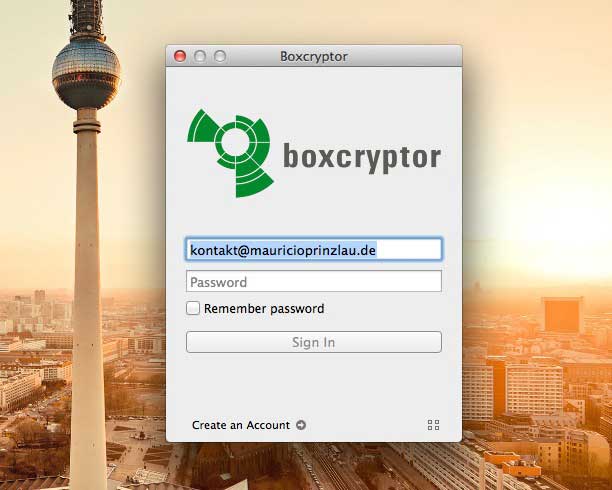
Once logged in, you can determine a safe location which BoxCryptor should use. If you're using Dropbox, then the safe location would be your Dropbox folder.
BoxCryptor then mounts as a separate drive that works just like the Dropbox folder. The user can then go ahead and select folders and files to encrypt (via a right click on the file or folder BoxCryptor should appear in the context menu). Once all files are successfully encrypted, BoxCryptor appends a .bc file extension and files get a green dot if they're successfully encrypted.
To view files in an unencrypted fashion– BoxCryptor needs to be mounted.
We've been using BoxCryptor for almost two years now and we're very happy with its seamless integration. It is both easy to use and gives us the peace of mind we're looking for. But let's look at two other options worth noting in the area of cloud encryption apps:
2. Viivo
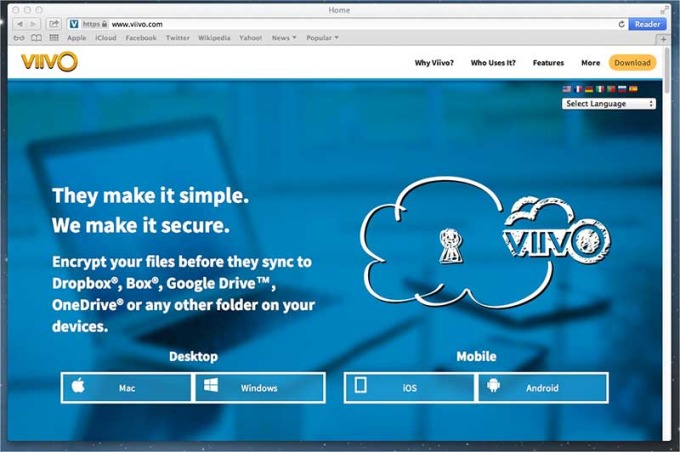
Viivo works similar to BoxCryptor. It is free for personal use. Encryption on iOS devices will require a paid account which amounts to $4.99 per-month and includes additional features such as two-factor authentication.
Integration with Dropbox & Look and Feel
It integrates seamless with Windows and Mac and automatically detects which cloud storage service is installed – making the installation a breeze. While BoxCryptor will create a separate drive on your computer, Viivo just adds a new folder which be can used to drop files into, if you want to see them encrypted. Just like Boxcryptor, Viivo uses AES-256 symmetric encryption technology.
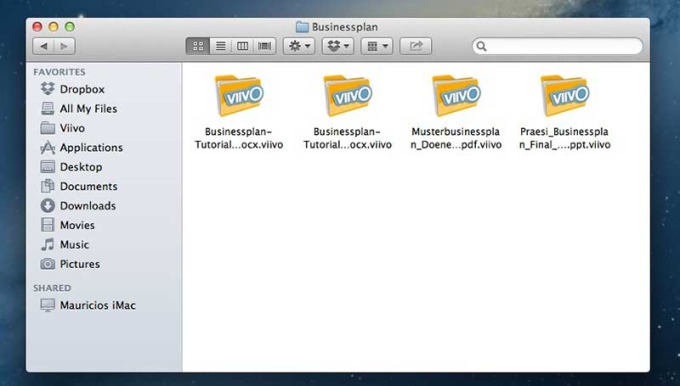
Viivo connects to Dropbox and sends these encrypted files to a folder within Dropbox. The standard folder is called Viivo Encrypted. Encrypted files get a new file extension .viivo, unlike BoxCryptor, Viivo will show the actual file name.
Viivo offers a feature called encrypted sharing which allows seemless and secure file sharing with multiple users. The added level of security, of course, is a bit cumbersome as the sharing partner needs to download and install viivo as well. This is the only way the file can be decrypted.
Once Viivo syncy all files, a small notification and a green check mark appear in the system tray.
We really like the look and feel of Viivo and how it integrates with different cloud storage services. Automatic detection is a nice plus that will ease the setup process. It is rather cumbersome to share files because a sharing partner needs to install Viivo to decrypt files– but security always comes at the price of lower convenience in our experience.
3. Cloudfogger
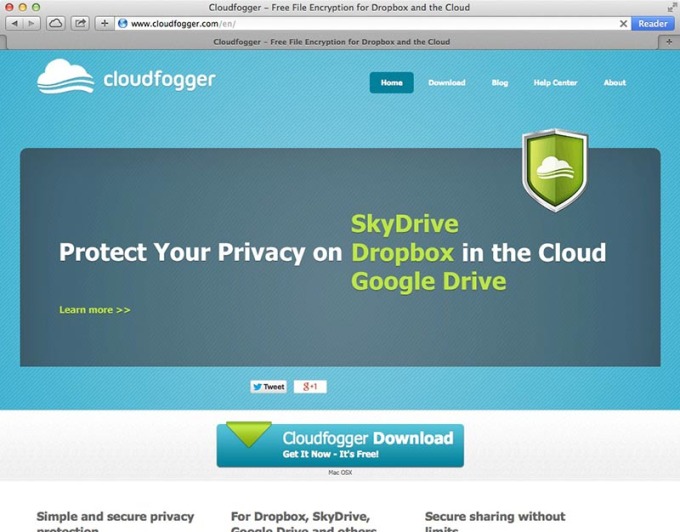
We tried to sign up for their service after downloading the software, but our email got rejected because it had already been registered. Now, maybe this was just a misclick before but we're pretty sure we not signed up for Cloudfogger in the past.
Whatever the case may be – recovering the password resulted in a welcome email that asked us to confirm our email address. We had to exit out of the setup wizard because it would not advance after clicking "Next". However, the Cloudfogger app opened directly after.
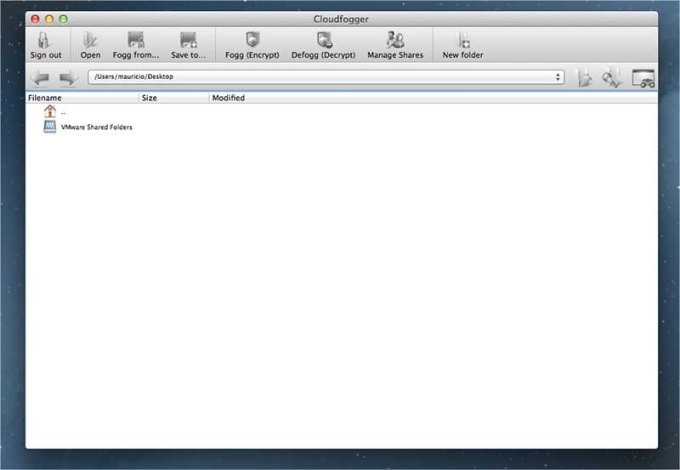
Aside from that experience, Cloudfogger's interface is far from intuitive. We were missing a dialogue which would help with the Dropbox integration. Folders and files that need encryption have to be manually selected, or "fogged" as they say.
Cloudfogger allows "fogging" a file anywhere on your operating system. When fogged, the file will get a new extension, ".cfog" and a new green shield icon. File decryption works via logging in to Cloudfogger; which obviously makes it necessary to run the software on all computers.
Like Viivo, Cloudfogger can manage file sharing. Sent invitations can be edited and/or revoked in the user management preference pane. If the user decides to share a file with somebody, that person needs to download and create an account with CloudFoggeras well.
Create Your Own Cloud Syncing World
The most secure way to handle files is if they don't even leave a person's computer or hard drives. Creating a cloud that you control and own is certainly one of the best secondary ways. Files will never leave your computer unless you spefically want them to.
4. OwnCloud
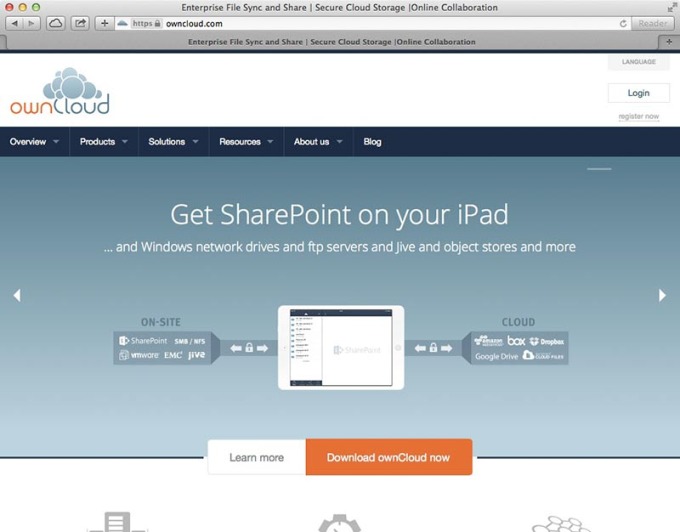
One of the most known services is OwnCloud. OwnCloud allows users to share and sync files, calendars and contacts across all devices. That sounds very promising – and it is from a security standpoint. Yet setup and usability is a bit more cumbersome.
OwnCloud needs a server to run their client. That server can be your own computer or ideally a network attached storage device. You definitely need to put in more manual labor in order to get OwnCloud to run and you're the one responsible for your files and encryption.
The first step is to download the clients and installation scripts. For the installation on a server or NAS, OwnCloud comes with an installer. On a Synology DiskStation (one of the leading NAS manufacturers) you can easily install the app from the third-party app menu.
OwnCloud Security
OwnCloud uses encryption in two ways: a TLS protocol is in charge of sending and receiving files from your server. As you're the only one controlling it, there is no need to encrypt files locally on the device.
The second encryption method is by ownCloud's encryption app which is specifically for files leaving the ownCloud server, for example when using ownCloud in combination with Dropbox, Google Drive, OneDrive or other less secure file syncing providers.
OwnCloud Features
Once finished with the hassle of installing and setting up ownCloud, you can access and sync files. There are more impressive features that come with it:
- Versioning and undelete – OwnCloud can bring back accidentally deleted files
- Galleries – manage and share galleries with friends
- Syncing contacts and calendars
- Collaborative editing of rich text documents
OwnCloud provide a fantastic way to sync files while giving total control to the user. Obviously,controlling all the ropes comes with a few downsides: you are the only one responsible for the files. As ownCloud gives total control to people, they need to take care of encryption and other security measures that come with running a server which is accesible via the web.
Cloud Storage Services with Local Private Encryption
Some people may want to turn their backs on Dropbox completely. In the following section, we look at 9 cloud storage and file syncing services that protect your files the right way. We'll look at each service's features and showcase our top picks at the end of the post.
5. SpiderOak
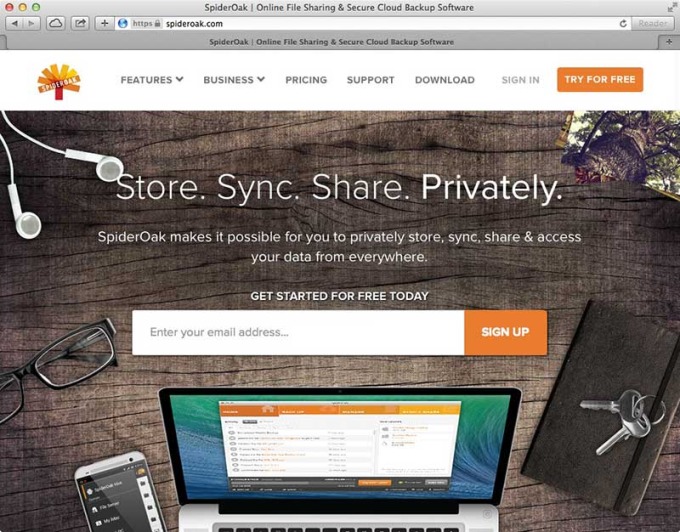
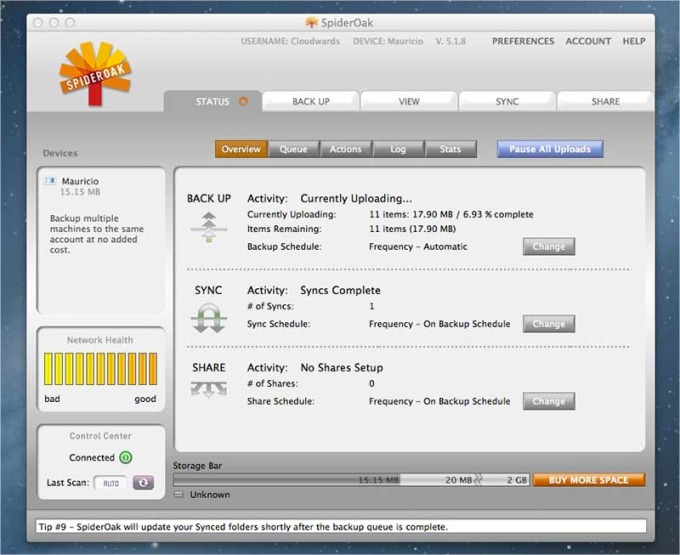
SpiderOak is one of the first online syncing services to take privacy seriously. Their service features zero-knowledge privacy; which means any file uploaded to their server is encrypted before it leaves the computer.
File sharing is very safe, too, but it is not zero-knowledge anymore. SpiderOak creates a "shared room" that is password protected and can be accessed via personal email invite, file link or via a website embed. Files in the shared room are stored in plain text. This however, does not affect other data you have in your account.
SpiderOak Security
Where other online storage services use only one encryption key (if they use encryption at all), SpiderOak uses a nested system of many small encryption keys. Which makes it possible to separate between different types of data either in your personal account or in your shared rooms.
Features
For most people, secure file syncing will be the most important part. SpiderOak is covering this aspect with their Hive. The Hive is a main syncing folder which embeds directly into any operating system (Windows, Mac and Linux). You can drag and drop files for sharing and synchronization.
Here are some other features of SpiderOak:
- Secure, automatic online backup
- Anywhere access, from the web, mobile phone or desktop
- Connect unlimited devices
- Trash recovery (if you deleted a file accidentally, you can recover it)
- File versioning
Plans & Pricing
Security comes at a slightly higher price point than Dropbox or other services. You'll get 2GB for free just like Dropbox, but the paid tier is more expensive coming in at $10 per 100GB per month:
| SpiderOak pricing – spideroak | ||||
|---|---|---|---|---|
| Storage | Monthly | 1 Year | ||
| 100 GB | $ 10 | Save 17% $ 100 $ 120 |
||
6. Wuala
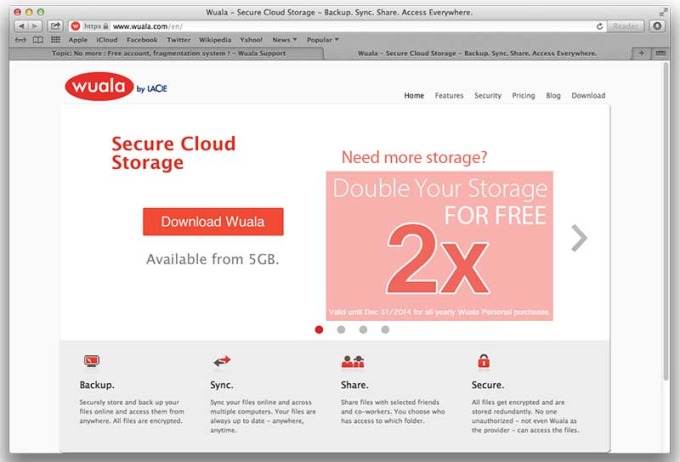
Wuala (by LaCie) is another cloud storage provider with client side encryption technology– made in Switzerland. Wuala employees or other unauthorized people cannot see the contents or names of files that are stored on their servers. Employees can only see how many files are uploaded into each individual account.
Unfortunately, they cancelled the free account option a while ago and you need Java to install their client software. Pricing starts at 0.99$ per-month for 5GB or 9.99$ for 100GB per-month, which sets this service clearly on the expensive side of the cloud spectrum.
Wuala Security
Wuala uses the AES-256 encryption, RSA 2048 for signatures and for key exchange when sharing folders, and another SHA-256 for integrity checks. Files will be stored in multiple location in Switzerland, Germany and France.
Features
If you're expecting a comfy web app you'll be disappointed. But of course there is a reason. Data access via a browser always requires communication between the server and the browser. That way Wuala, would have to decrypt files for the best viewing experience and that leaves people at a higher security risk.
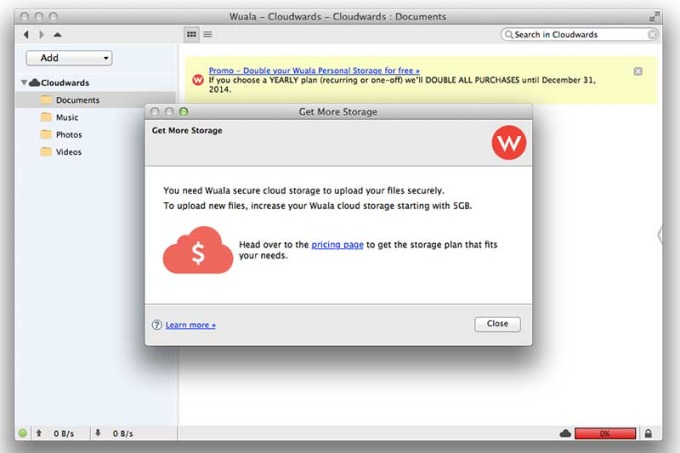
There are other features worth noting:
- File syncing – sync your files onto a any devices
- Backup and Versioning
- Secure file sharing
- Collaboration (for business users)
7. Tresorit
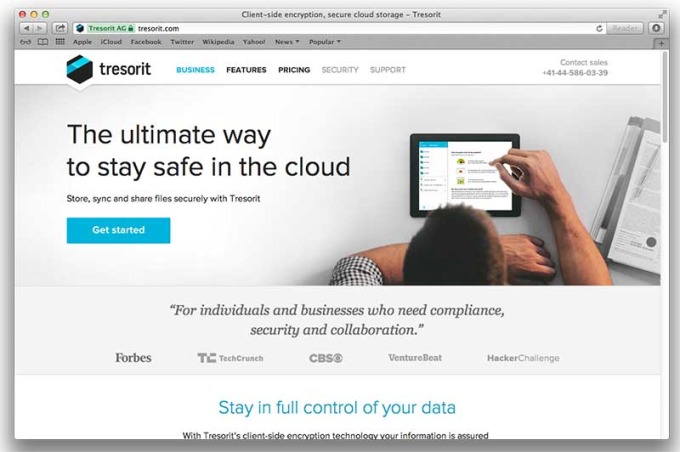
Tresorit is a good alternative for Dropbox or Wuala. They offer 5GB of free storage, so there is plenty of room for people to play with before deciding to buy. Tresorit creates a private "Tresor" on your computer where sharing and syncing takes place. You can create as Tresors as you like to organize your files.
Sending secure encrypted files is very easy. Once Tresorit syncs all files to the cloud, it's enough to click "Get encrypted link" and a secure link is copied the clipboard. Tresorit provides a detailed overview of all encrypted links and activity. You can revoke the link and access anytime.
Tresorit Security
Tresorit claims to be "safer than safe", because similar to SpiderOak, they offer a zero knowledge privacy for maximum protection. Your files are encrypted on the client side so they can't be decrypted in the cloud. The TLS protocol is in charge of protecting files during transfer from and to the cloud.
File sharing is a bit more complicated. People can send invitations to files or folders in a Tresor. Each Tresor contains the "group info" where all handling of access rights with public encryption keys (the so called agreements keys) takes place.
When inviting people to a Tresor, Tresorit performs a rather complex process of cryptopgraphic handshakes which allow control access levels and rights (revoking and granting access privileges). If you'd like to digg deeper into Tresorit's encryption method, here is a detailed explanation of how it works.
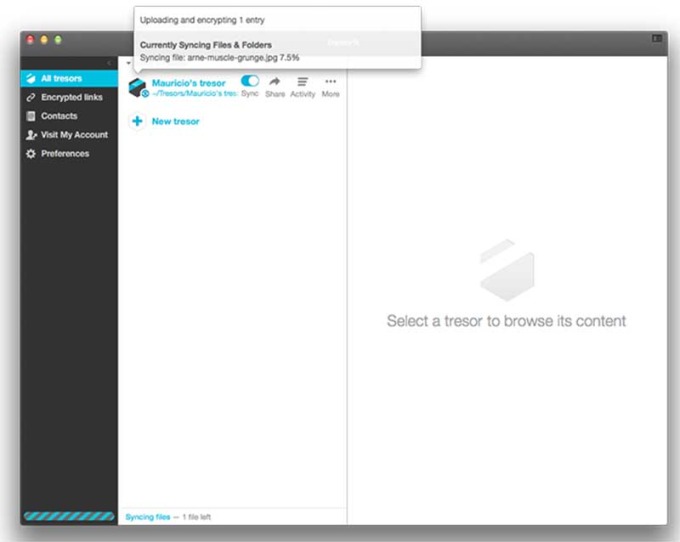
Tresorit Features
Tresorit offers the standard cloud storage features: folder syncing, sharing and secure file link creation. The business version covers more features like preventing printing or taking screenshots of shared files.
With the personal version, paid tiers start from 12.50$ per month for 100GB. You can share a folder with a maximum of 10 people – Unfortunately, the file size is limited to 500MB per file, which is a bit low. Photoshop or other media files, for example, can easily exceed 500MB.
The free, basic account allows for one version of a file while the premium plan can go back 10 file versions. Encrypted links can be a maximum of 150MB with the paid and 100MB on the free tier.
Other features include:
- Access statistics (free and paid)
- Two step verification (free and paid)
- Activity history (for 7 and 90 respectively)
- More features are available in the Business tier starting from 25$ per user per month.
8. nz
We have reported about Mega in the past. Mainly known for its infamous founder, Kimdotcom (father of the file hosting service Megaupload seized by the FBI in 2012) – it boasts several high security features worth noting. Remarkable in the cloud space is the free storage of 50GB.
Mega is a fairly simple online storage solution; you can either upload your files via the web or download the client to sync among various devices.
Mega Security
End-to-end encryption is MEGA's security foundation. That means data that leaves your browser remains encrypted until the intended recipient decrypts it. So, everything private is protected by a master key. The master key itself is password protected by PBKDF algorithms. The file content is segmented into blocks and encrypted with so called session keys.
An RSA key pair handles access to shared files, the private key is protected with the master key and the public key is "world readable". To share files securely, access information to shared files is encrypted with the recipient's RSA public key. If you're interested in further reading, here is an interesting presentation of MEGA's security protocols.
While files are encrypted locally and through transit, the keys are stored on Mega's servers. Third-party entities could force Mega to go out and look for your keys.
Other services in this list store the key on the user's computer, inaccessible by the cloud service or any other third-party.
Mega Features
Most notably, Mega offers 50GB for free. It will be hard to find another cloud storage service with this level of security offering the same amount of free storage. Tresorit with 5GB for free or Dropbox with only 2GB lag pretty far behind.
Mega comes with a file syncing client that works similar to Dropbox. Drag and drop files for easy syncing across multiple devices and share folders with colleagues or friends. You can upload files of any format and size.
A healthy amount of free storage is paid by a slightly less secure cloud service. If you just need a quick way to securely share a lot of files for free – you can give Mega a try.
9. sync – A Canadian Dropbox Alternative
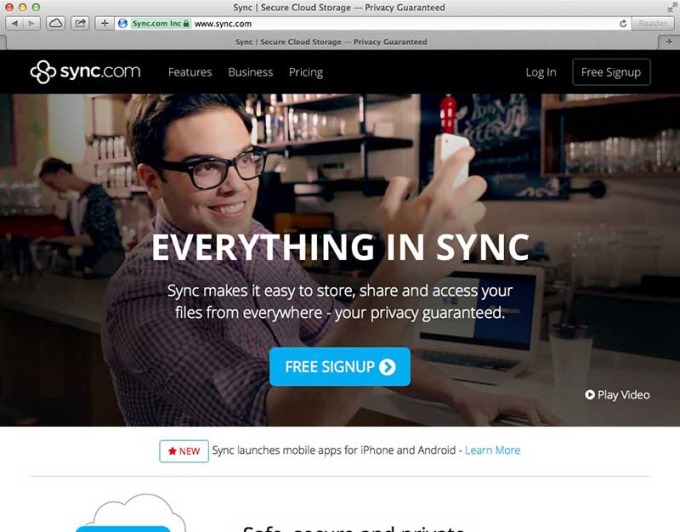
sync is not shy when it comes to talking about their level of security. According to their website they are "the most private, most secure cloud storage service on the planet!". Certainly, they have one of the slicker web sites of all cloud services tested in this article.
sync is currently in beta, yet they already have a very presentable feature list including file sharing and syncing, automated cloud backups, device and user control and zero-knowledge encryption and HIPAA compliance for the pro plans.
With the free account you get 5GB and virtually all the pro features with the exception of unlimited multi-user file collaboration. Paid plans start from 49$ per year for 500GB up to 5TB for 490$ per year.
sync Security
As with the majority of zero-knowledge cloud services, sync use a 256-bit AES encryption on files and lock them with 2048-bit RSA private keys. For maximum security, passwords are maintained as SHA256 strings. That way, not even sync can see the keys clearly.
If you would like to know more about the details, feel free to read their white paper here.
sync Features & Usability
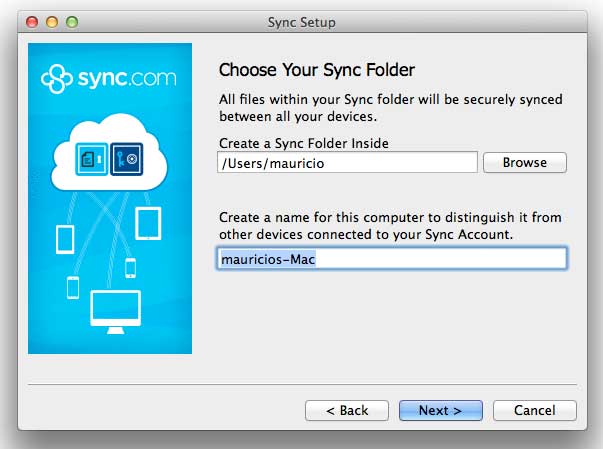
Let's look at some features and the look and feel of sync. Installing sync is very straight forward and works in a Dropbox-like fashion. You can determine your sync folder at the beginning of the process to start to move files into their cloud.
As with other syncing services your syncing folder is made available in your favorites bar (on the Mac). In the preference pane, you can monitor the progress of files and change the network setting if you'd like sync to consume more or less bandwidth.
A better security level than Dropbox almost always comes at the price of convenience. Once sync has transferred and synced the files, you cannot share a link from the desktop context menu like Dropbox.
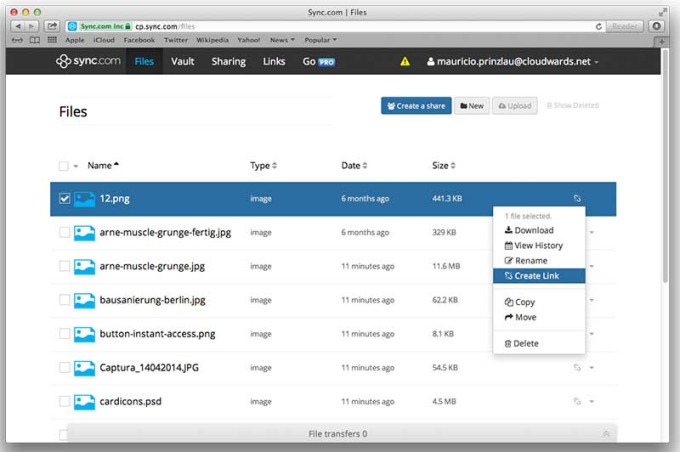
Instead, you have to manage shares and shared links from the web panel. Some may say that a web client is not safe because it's not 100% zero-knowledge, as there has to be some interaction with the browser and your password. Although a Javascript function hashes your password with SHA1 before submitting the hash to the server. In the end, you have to decide how much security you want and pick a provider accordingly.
In the web app, you can create new folders and access your backup vault. Files you move to the vault will be removed from your sync folders and are only accessible via the web. sync does not sync those files to a computer, which frees up some space. Backing up files therefore doesn't come at the expensive of hard disk space.
sync offers a revision history for files. In the web interface, you can go back in time to undo changes and revert to a previous version.
10. Teamdrive
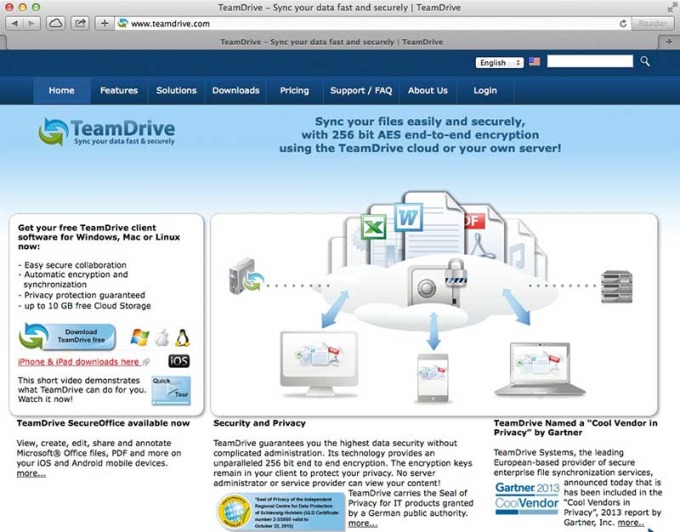
Teamdrive is a lesser known cloud syncing service– based in Germany. You can sign up and test the service for free with a 2GB storage limit. Cloud storage can be increased in 10GB (5,03€/month), 25GB (12,56€/month) or 50GB (25,12€/month) increments. So the price tag is a bit heavier compared to other cloud services in this playing field.
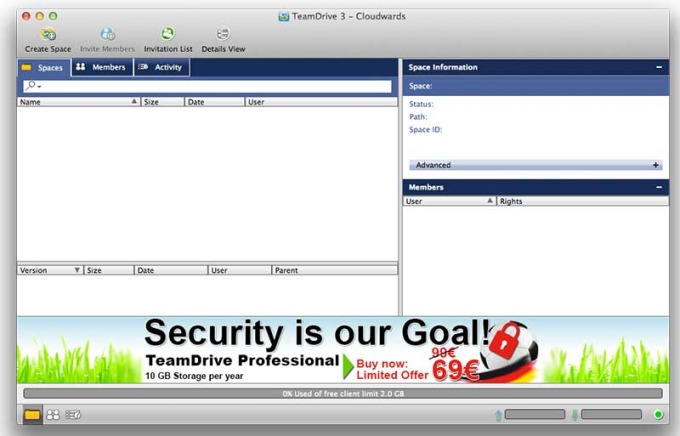
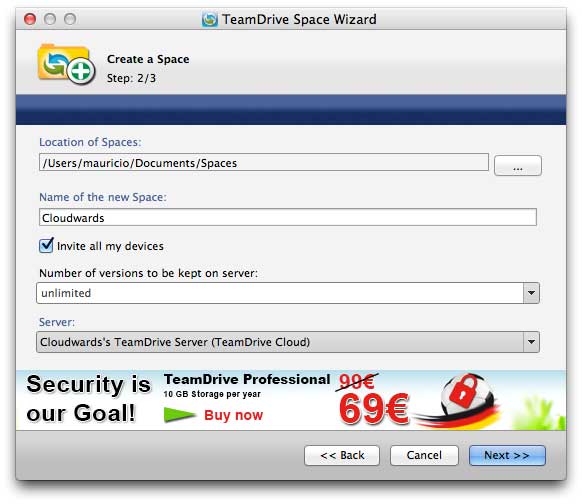
Teamdrive doesn't create a syncing folder automatically. It can be created through the interface with control over its exact location. Once the "space" is created, you can invite users to start collaboration.
Teamdrive Security
Teamdrive encrypts files locally with a public-private key pair (RSA-2048). The public key is stored on a Teamdrive server, which puts it out of your control and is used for invitations to shared folders.
AES-256 encrypts files on the computer before they leave the machine. Each folder gets a separate symmetric AES-256 key. If another user joins the folder by invitation, the public key is encrypted with the private key and sent to the group member.
Teamdrive Features
With TeamDrive there is more flexibility compared to the other solutions presented here. TeamDrive allows using their servers to host files or use an own server solution (that can be a NAS, Raspberry PI or a home media server). As a third option, TeamDrive can sync over WebDAV users.
There are more features which makes this solution a good choice:
- Automatic version management
- Automatic, multi-location backup
- Collaboration and conflict file management
- Access rights management for invited users
- All file type formats are supported
The Professional version has some advanced features like email notifications and publication of individual files by URL.
So, What's The Best Solution?
As always, there is no one-size-fits-all cloud app. Especially when security is of utmost importance. It is critical to know what level of privacy is needed. Companies and private users alike need to strike a balance between ease-of-use, fast access, usability and security. For most people, a combined use of Dropbox and BoxCryptor is certainly enough. However, file sharing is more complicated; especially in a corporate environment.
We liked Tresorit a lot, particularly with some of the advanced features for professional users. Their client gives a well-rounded impression and the security concept is top-notch. TeamDrive uses servers based in Germany, so European users can benefit from faster access and a very high level of security.
For personal users, SpiderOak is worth taking a look. It has all the features you'd expect from a cloud storage service, plus the peace of mind Dropbox is lacking through zero-knowledge privacy. SpiderOak is available for all major OS's.
We have pointed out previously, that what makes Dropbox so successful is its ease-of-use and the ecosystem that comes along with it. Why is Apple so successful? Sure, they do have a great product, but Apple wouldn't be where it is today without the ecosystem of apps and developers they have created.
So, the benefits of a cloud storage service don't really come from the service itself, but from the services and integrations around it. Whether or not there can be a secure cloud storage system that fits this bill, is yet to be seen.
References: http://cloudwards/top-10-secure-dropbox-alternatives/